
Plutio integration
Link your Conopeum workspace to Plutio to sync tasks, customers, comments, and time entries in both directions.
Overview
The Plutio integration enables a two-way sync of customers, tasks, comments, and time entries between Conopeum and Plutio. While Google Tasks remains the source of truth in Conopeum, this integration allows teams to push tasks to Plutio projects and ensure time logs are mirrored across both platforms.
See also: Managing customers · Running a timer · Roles and permissions.
Connect Plutio
Only workspace Owners and Managers can connect Plutio.
- Create a Plutio API client. In Plutio, open Settings: API Manager and create an application. Copy the Client ID and Client Secret.
- Open Settings: Integrations: Plutio in Conopeum. You will see the disconnected card with fields for your subdomain, Client ID, and Client Secret.
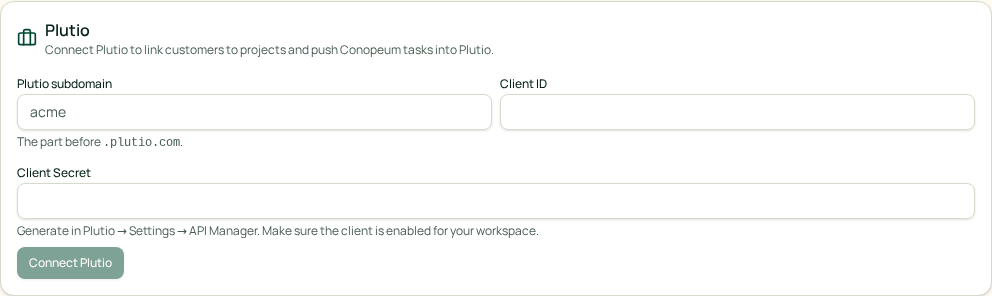
- Fill in your Plutio subdomain (the part before .plutio.com), paste the Client ID and Client Secret, and click Connect Plutio. Conopeum verifies the credentials against Plutio before saving; if the check fails, nothing is stored.
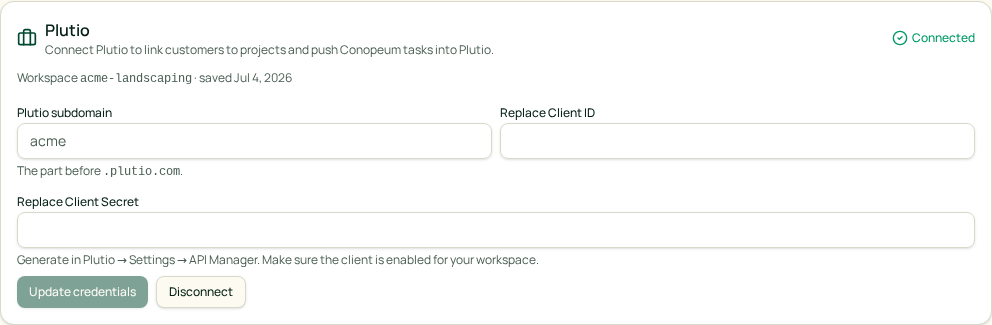
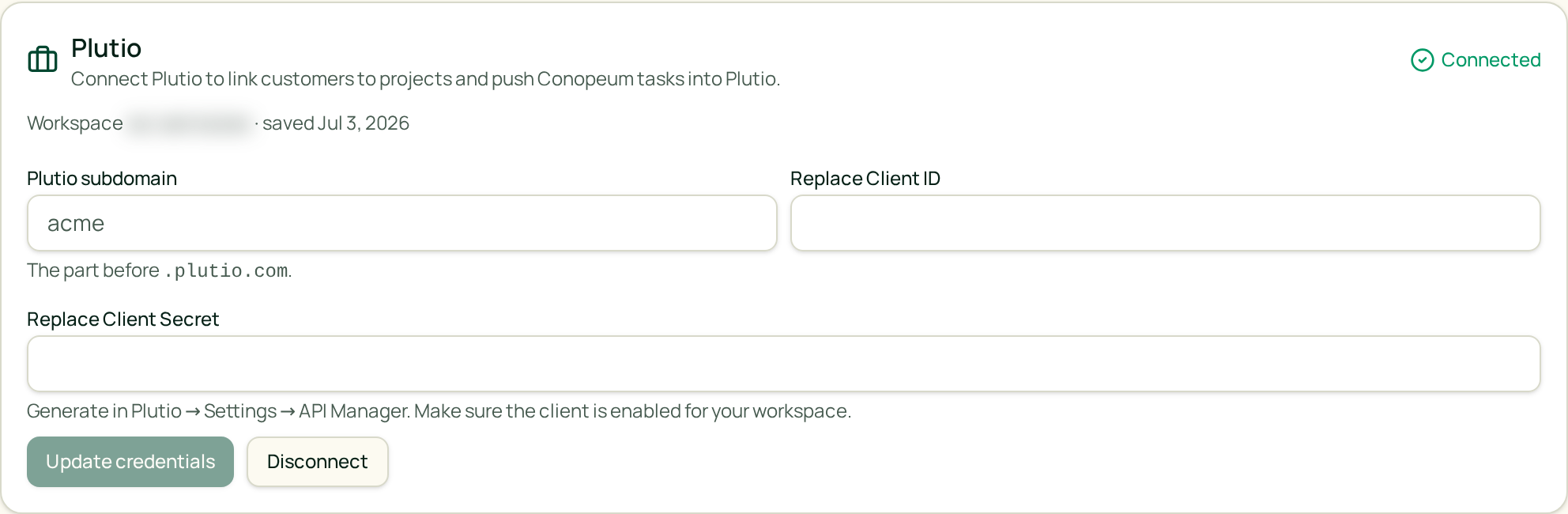
Credentials are stored per workspace, so every member can push tasks and log time against Plutio once an admin connects it. To rotate them, enter new values and click Update credentials.
Link a customer to a Plutio project
On the Customers tab, open a customer and use the Plutio panel to either:
- Link to an existing project: pick a project from the dropdown of what already exists in your Plutio workspace, or
- Create a new project from this customer: Conopeum creates a project in Plutio using the customer organization name and links it in one step.
The link is stored on the customer, so every task attached to that customer inherits the same Plutio project. Conopeum maintains a two-way sync of customer data between both platforms.
Push a task to Plutio
Open a task and click Push to Plutio in the task detail panel. A task can be pushed when it has a customer assigned and that customer is linked to a Plutio project. When you push, Conopeum creates the task in Plutio (or updates it if it was pushed before). Existing time entries and comments are included in the sync. The Plutio task ID is stored on the Conopeum task so future edits update the same Plutio task instead of creating duplicates.
Time entries: both directions
Conopeum to Plutio (push)
When you run a timer or log time in Conopeum against a Plutio-linked task, the entry is synced to Plutio. Once an entry has been pushed, Conopeum remembers the Plutio time entry ID so it is not sent twice.
Plutio to Conopeum (pull)
Conopeum pulls time entries from every linked Plutio project. New entries land in Conopeum against the matching task with the source marked as Plutio.
Time entry categories
Plutio allows you to tag every time entry with a category. Conopeum resolves which category to use for a pushed time entry in the following order, where the first match wins:
- Per-customer override: set on the customer Plutio panel.
- Per-section override: set inline on a section in Settings: Sections. Use this to make tasks in specific pipelines (like Sales or Support) push with a specific category.
- Workspace default: set in Settings: Integrations: Plutio. This applies to any entry that has no customer or section override.
Conopeum fetches the list of live time-tracking categories directly from your Plutio workspace. If you do not set a default, entries push to Plutio as Uncategorized.
Disconnect Plutio
Go to Settings: Integrations: Plutio and click Disconnect. Credentials are cleared but no already-synced data is deleted. Tasks that were pushed keep their Plutio task IDs, so if you reconnect later, updates keep flowing to the same Plutio tasks.
Troubleshooting
- “Task has no customer” when pushing: assign the task to a customer first, or link the customer to a Plutio project.
- “Not connected” in Settings: credentials never verified. Re-enter Client ID, Client Secret, and subdomain.
- Category picker is empty: the Plutio API returns categories from your workspace time-tracking settings: if you have not defined any there yet, add one in Plutio first and it will show up in the picker.