
Canva integration
Create Canva designs from any task, then save the exported files back to the task through Google Drive.

Overview
The Canva add-on lets you kick off a branded design straight from a Conopeum task. When the design is exported, the file lands in a Google Drive folder you pick, and is auto-attached to the originating task; so the finished asset lives next to the work it belongs to.
See also: Google Drive for attachments · Task templates · Plutio integration (sync the finished task + assets to a client project).
Connect Canva
Canva is connected per user, so every workspace member who wants to create designs from tasks needs to connect their own Canva account here.
1. Go to Settings, Integrations, Canva. You will see the disconnected card with a Connect Canva button and the scopes we are requesting.

2. Click Connect Canva. You will be redirected to Canva's site to approve access. Canva shows you the requested scopes (design:content:write to create designs, design:content:read and asset:read to export them) and asks you to allow or deny.
Canva's OAuth consent screen lives on canva.com, so we cannot show it here; but it is a standard "Allow / Deny" page listing the scopes above.
3. Approve, and you will return to Conopeum with a Connected badge. The card now shows when you connected and offers a Disconnect button.

Create a design from a task
1. Open any task. In the Attachments panel on the right, you will see a new Canva row with an Add Canva design button (as long as your Canva is connected).
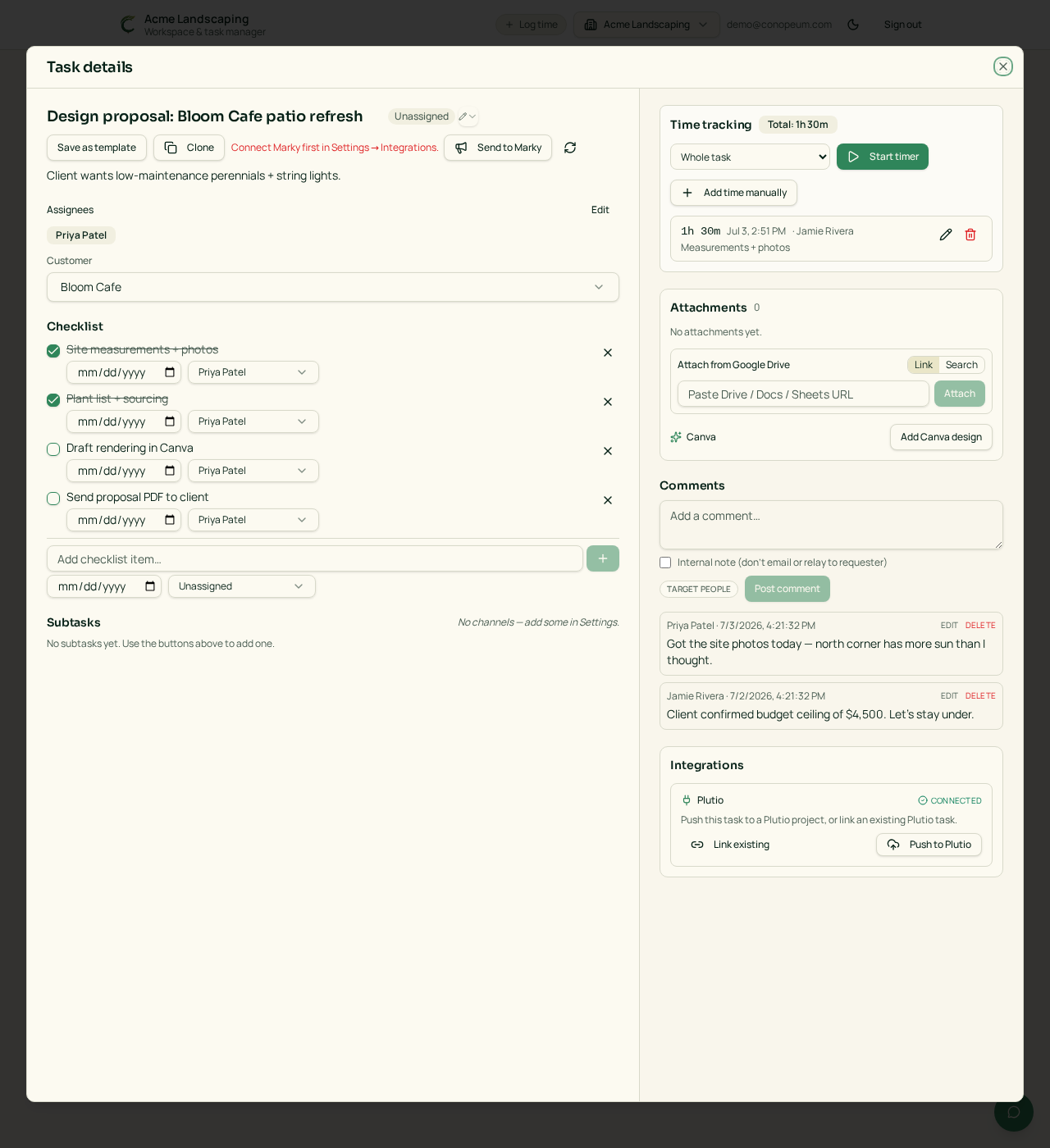
2. Click Add Canva design to open the template picker. You can pick a Design type to start a blank design or pull from your Brand templates.
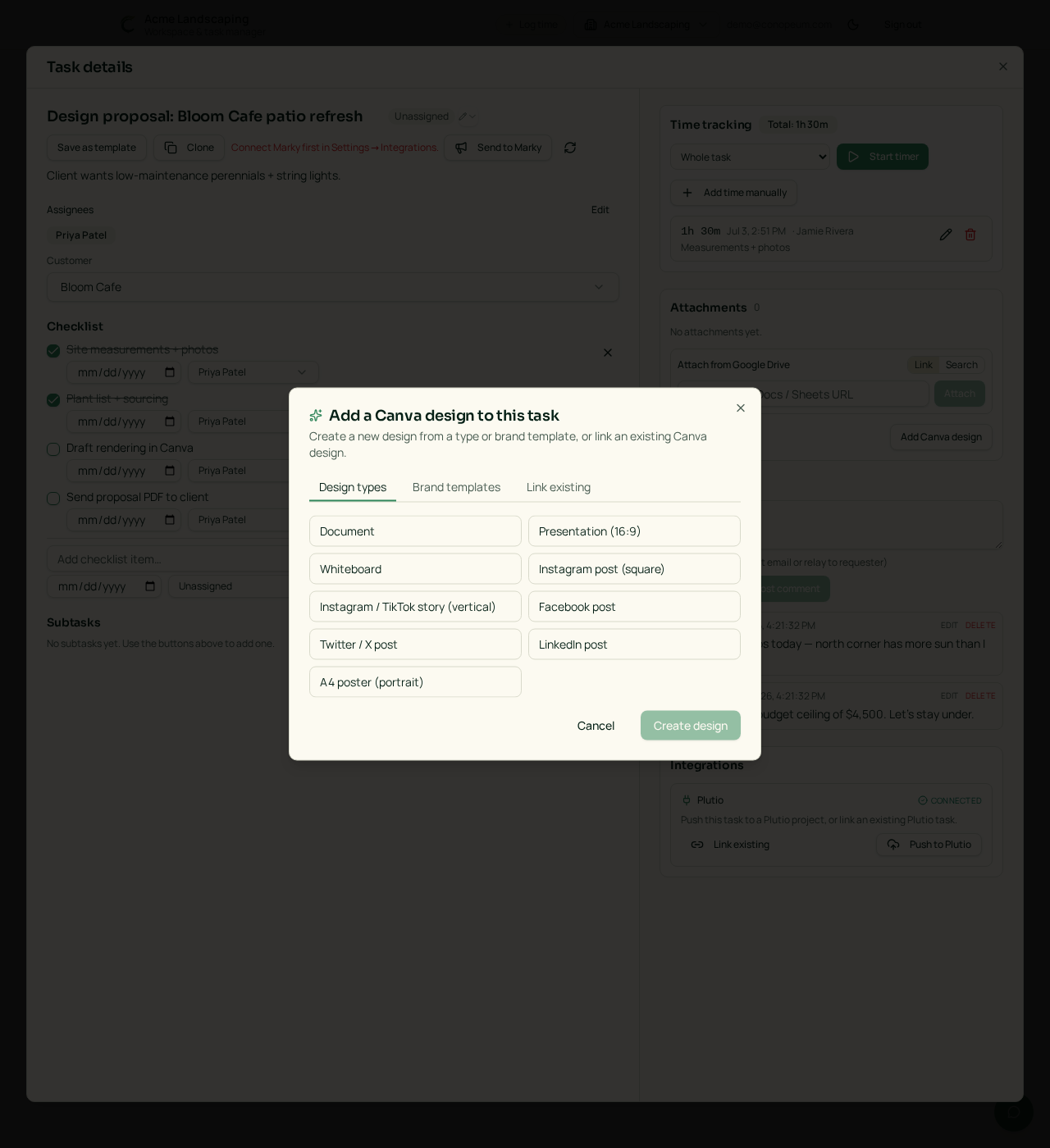
3. Click Create design. Canva opens in a new tab with the design pre-filled; edit as normal.
4. When you export from Canva, exported files (PNG/JPG/PDF) sync to Google Drive and link back to the source task as attachments automatically.
Because exports flow through Drive, you also need Google Drive connected (it is included on every plan: see Connect multiple Gmail accounts).
Typical workflows
- Client creative tasks: a template per deliverable (social post, banner, or one-pager). The task holds the brief, the design lives in Canva, and the export sits on the task as an attachment.
- Reusable templates: combine with task templates so every new "Instagram post" task ships with a Canva step already wired in.
- Downstream sync: because Conopeum features a two-way sync with Plutio, any attached exports on the task will mirror to the corresponding Plutio task. Avaza support is coming soon: it will push tasks and mirror time entries per teammate.
Disconnect Canva
To revoke Conopeum's access, go to Settings, Integrations, Canva and click Disconnect. The card immediately returns to the disconnected state shown at the top of this article. Existing Canva designs already attached to tasks stay put; only the ability to create new ones or re-export is removed until you reconnect.
Troubleshooting
- "Creating designs requires design:content:write": the Canva client you connected does not have that scope enabled. Disconnect and reconnect Canva to re-request scopes.
- Nothing appears in Drive after export: check that Google Drive is connected and that the folder you picked still exists.
Preview task attachments
Use the eye beside an attached file to preview it inside the task. Google Drive uses a small file thumbnail when available; Canva shows a design thumbnail. Open original opens the full file or design. Some Google files require signing in to Google in a separate tab. pCloud previews will be available after application approval and account setup; supported formats include ordinary images and PDFs. Previews use the same permissions in development preview and the published app.
Task Files tab
Files are now in a separate Files tab inside each task, with a count and compact file rows. Select the eye to preview a file. Add file reveals Google Drive, pCloud or Canva tools. The three-dot File actions menu contains refresh and removal tools. Activity focuses on conversation; Time has its own tab, and optional task setup is under Settings.