
Connecting multiple Gmail accounts
One workspace can pull from many Gmail addresses: great for shared inboxes.
Overview
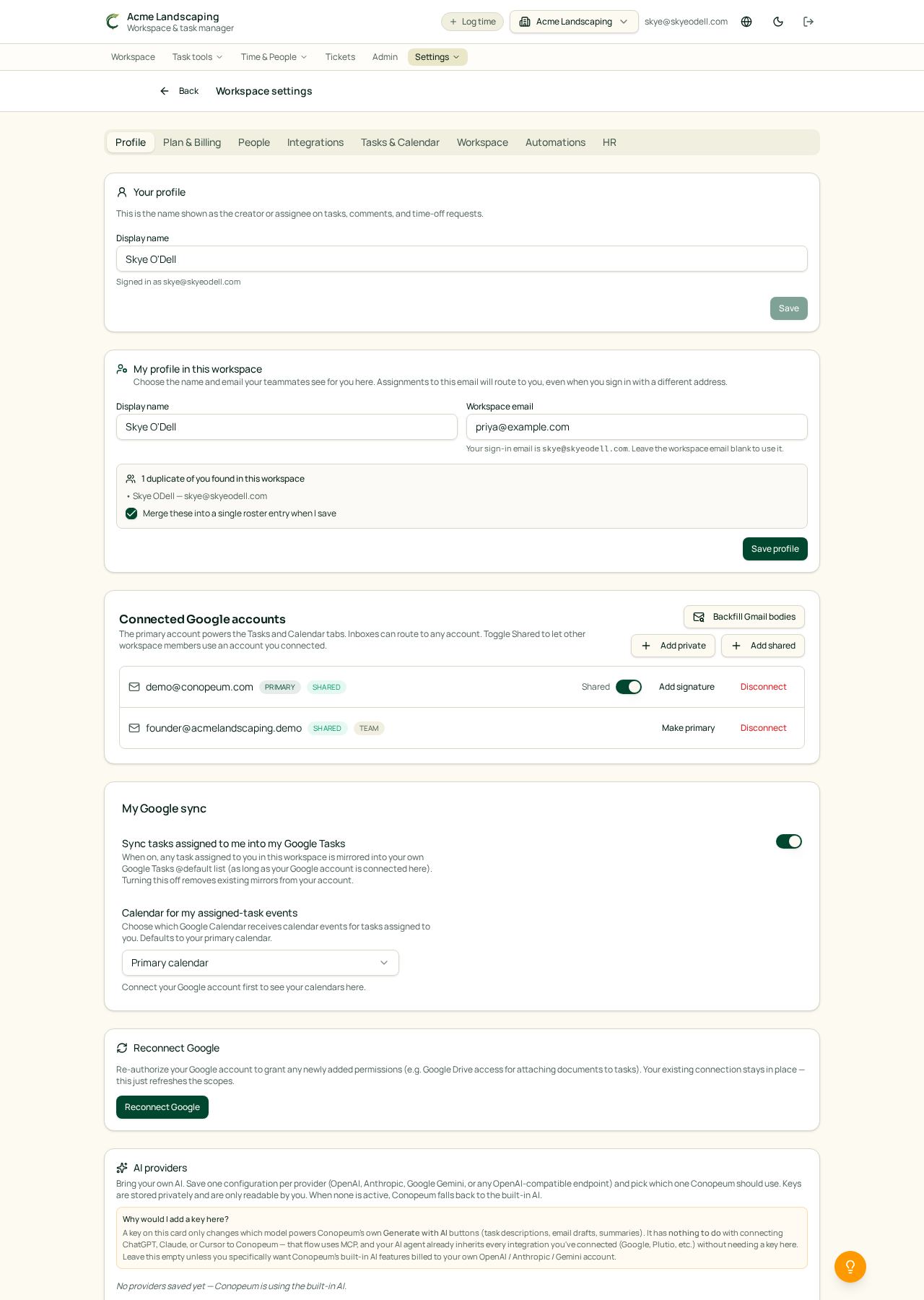
Conopeum lets you connect multiple Google accounts per workspace. Each connected account has its own inbox, calendar, and its own Google Tasks list, which serves as the source of truth for your tasks. You switch between them from the account picker at the top of the Mail, Calendar, and Email-to-task tabs.
This is the feature that makes Conopeum different: you can run a work Gmail and a personal Gmail side by side without signing out.
Connect the first account
- Open the Mail (or Calendar / Email-to-task) tab in the app. If no Google account is connected yet, you will see the connect card.
- Click Connect Google account and complete Google's OAuth screen. Grant Gmail, Calendar, and Tasks scopes so all three tabs light up.
- You are back in Conopeum with your inbox loaded and the account visible in the picker.
Add a second (or third) account
Open the account picker in the tab header and choose Add another Google account. Sign into the next Google account in the popup. When you are back, the picker will show both; click either to switch what you are viewing.
You can add multiple Google accounts as needed. Each account's data stays in its own view; Conopeum does not merge inboxes.
Disconnect an account
Open Settings, Integrations, then Google and click Disconnect on the row for the account you want to remove. Any drafts or tasks you already created stay put; only the live connection is revoked.
Troubleshooting
- The tab still says "Connect Google" after OAuth: your popup blocker may have swallowed the redirect. Try again with popups allowed for this site.
- Only one account shows in the picker: click Add another Google account in the picker; the standard OAuth screen will open again for the second one.
- "Insufficient scopes": you unchecked a scope on Google's consent screen. Disconnect the account under Settings, Integrations and reconnect, leaving all requested boxes checked.