
Turn an email into a task
Every Gmail message can become a tracked task in one click with Conopeum, keeping your threads linked and your team organized.
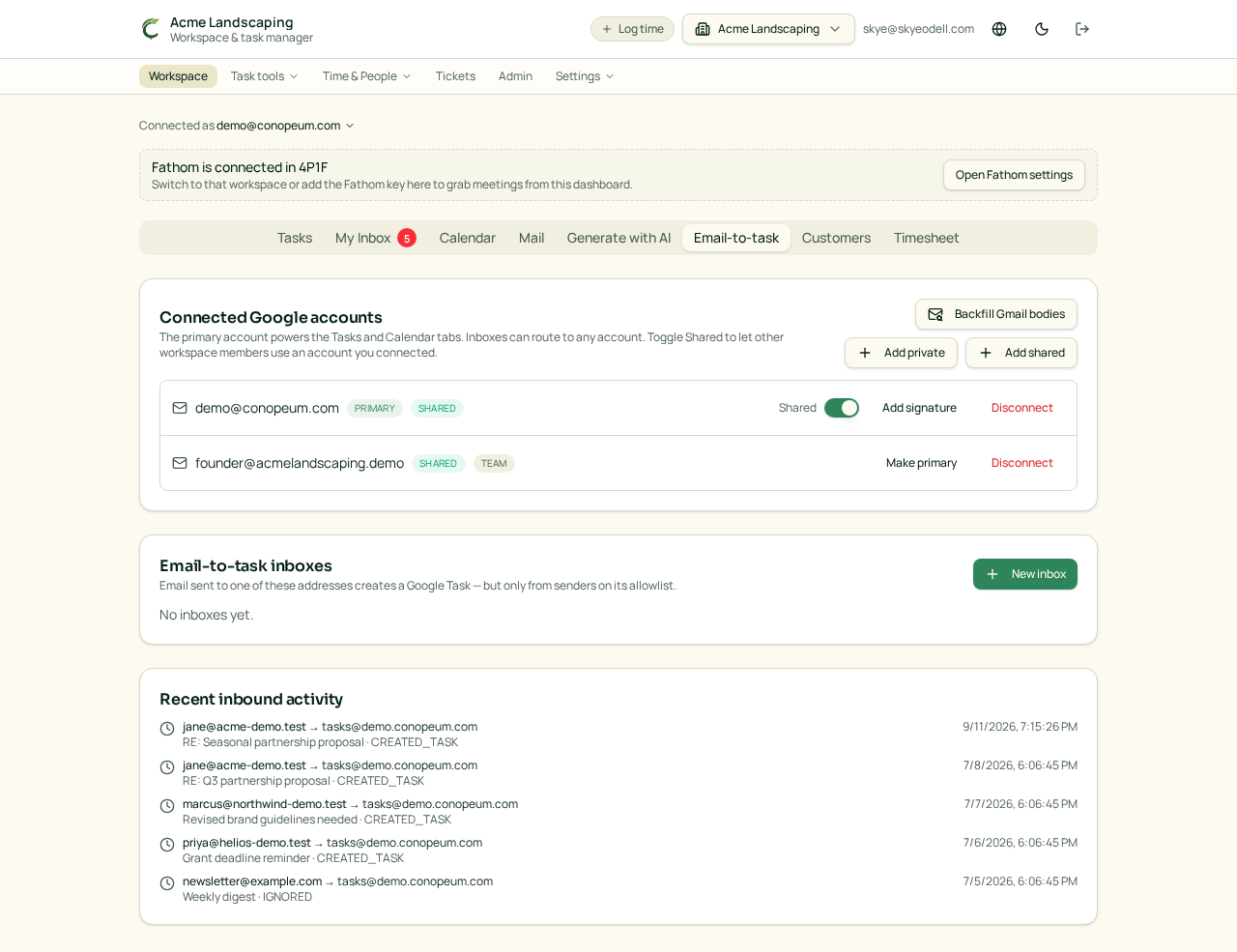
Overview
Conopeum allows you to turn any Gmail thread into a task. This keeps your communication in context while utilizing Google Tasks as the source of truth for your workflow.
Convert from Gmail
Open your thread and click Convert to task. Conopeum drafts a task using the email subject as the title and the body as the description. The thread remains linked so your replies stay in context without leaving the inbox. Gmail-created tasks show their source email, sender, date, body, account, and Gmail link in task details when available.
Set the section, priority, and assignees before saving. Use the multi-Gmail feature to connect multiple Google accounts per workspace and pick which inbox you are converting from.
Customer management while creating tasks
Customers are auto-created from inbound emails. Conopeum uses trim and lowercase matching (case and whitespace insensitive) for email addresses to ensure duplicates do not slip in.
If you are adding a task and a matching customer is found, a "matched existing customer" note appears in the dialog. Conopeum will automatically backfill missing fields like name, phone, or organization from the new submission into the existing record. You can also manually pick an existing customer to file the task under them: the customer name is prepended to the task title (e.g. [Acme Inc.] Website copy tweak) and the task appears in that customer's view immediately.
Merge duplicate tasks (tickets)
When two threads from the same customer land in your inbox, you can use ticket merging to combine them into a single task instead of managing them separately.
How to merge:
- On the Tasks tab, select the two threads from the same customer that should be one.
- Use the merge function to consolidate the threads into a single task.
Merging ensures your team has a single point of reference for customer requests. This process supports syncing with integrations like Plutio and MyMarky, ensuring comments and task data remain consolidated.
Link a customer to Plutio
Once a customer exists (auto-created from the email or picked in the Add-as-task dialog), tie them to a Plutio project so every task inherits the same destination.
Where to click: open the Customers tab in /app, click the customer's row, then use the Plutio project panel on the detail view.
- Open the Customers tab in
/appand click the customer's row. - Scroll to the Plutio panel on the customer detail.
- Choose one of:
- Link to existing project — pick from the dropdown of live Plutio projects.
- Create new project from this customer — Conopeum creates a Plutio project using the customer's organization name and links it in one step.
- (Optional) Set a time-entry category override on the same panel so every hour logged for this client tags the right Plutio category.
- Save. From now on, any task assigned to this customer shows Push to Plutio in the task detail panel.
FAQ
- The link did not save: check the Plutio connection is active and the customer has an Organization name. The project list is empty if credentials are missing or expired.
- Creating a new project failed: use a unique Org name; if a Plutio project already exists with that name, choose Link to existing project instead.
- What syncs after linking?: tasks assigned to this customer show Push to Plutio, time entries push and pull two-way, and customer details (org name, email, contact name) stay in sync between Conopeum and the linked Plutio project/contact.
- How do I unlink?: clear the project in the Plutio panel or delete the customer. Already-pushed time entries remain in Plutio; new tasks stop offering the project.
Workspace must have Plutio connected in Settings → Integrations → Plutio. Full walkthrough: Plutio integration.
Integrations and Time Tracking
Once an email is converted to a task, you can utilize Conopeum's deep integrations:
- Plutio: Enjoy two-way sync of customers, tasks, comments, and time entries. Time categories are resolved in order: customer, then section, then workspace default.
- Canva: Create blank designs or open a brand template from any task. Exported files (PNG/JPG/PDF) sync to Google Drive and link back to the source task as attachments.
- MyMarky: Send a task to MyMarky as a draft social post. Task image or video attachments are uploaded to Marky's media library, and a comment with an "Open in MyMarky" link is added back to the task.
- Fathom: Convert Fathom meeting notes into tasks automatically.
- Avaza: Coming soon: push tasks and mirror time entries per teammate.
- Atarim: Enjoy two-way sync for website-feedback tasks, status, priority, and comments. Imported tasks include screenshots, files, and page context.
Troubleshooting
- Convert to task is greyed out: Ensure your Google account is connected to the workspace. You can connect multiple Google accounts to manage different inboxes in one place.
- Duplicate customer records: Conopeum prevents duplicates via email matching, but ensure the email address is correct to trigger the automatic backfill of missing fields.
Customer matching
When the sender belongs to an existing customer, Conopeum selects that customer automatically. Review the selected customer before saving. If there is no match, you can choose a customer or create one during triage.