
Inviting members
Add teammates by email and assign a role.
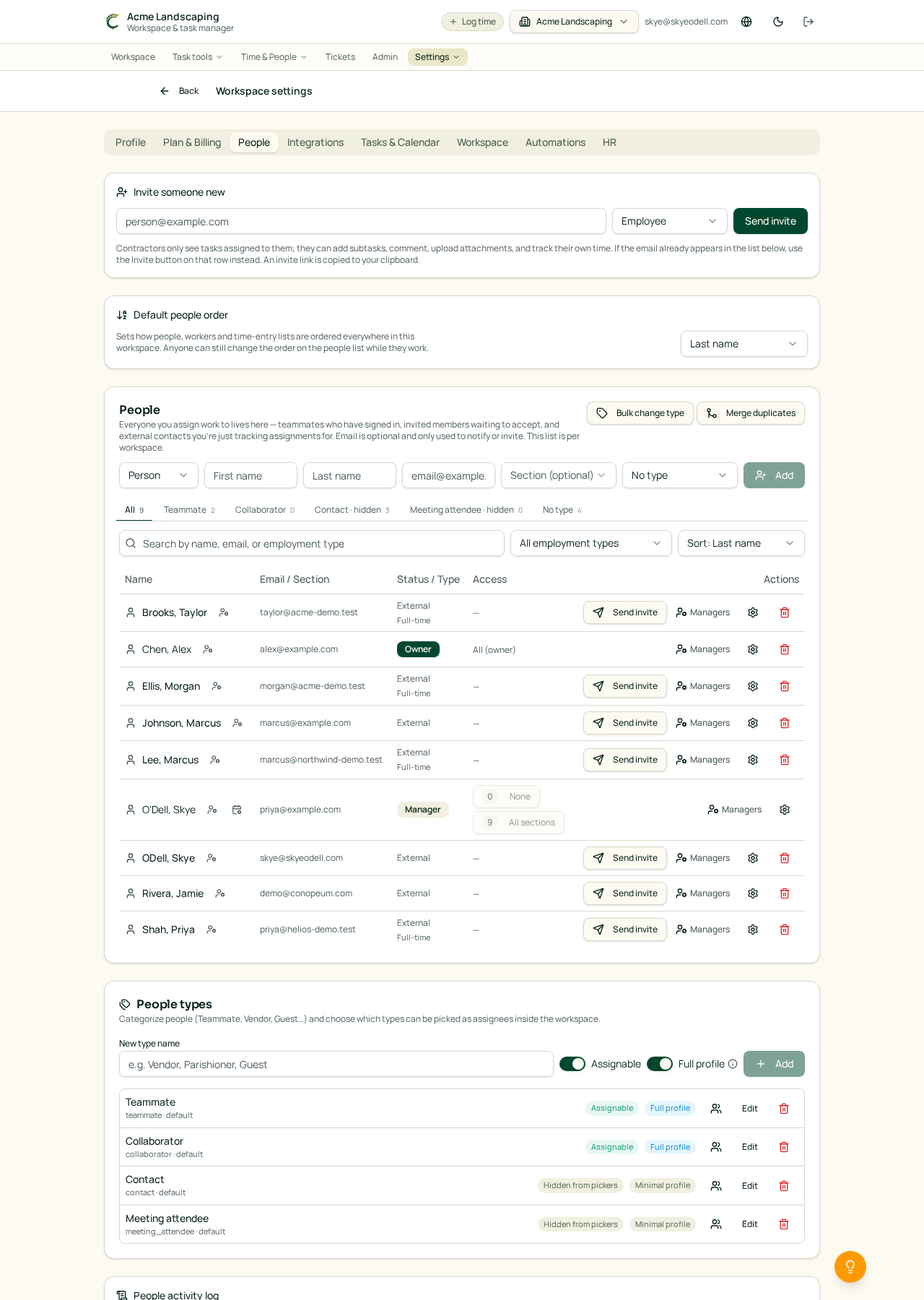
Overview
Invite teammates so they can pick up tasks, log time, and comment. Only workspace Owners and Managers can invite (see Roles and permissions). Personal workspaces cannot have members, so create a shared workspace first.
Send an invite
Open Settings → Members.
1. Pick a role for the person you're inviting (Manager, User, or Contractor). Owners can also invite other Owners.
2. Type the email address and click Send invite. The invite appears in the pending list at the bottom.
3. They get an email with a link to accept. If they don't already have a Conopeum account, they'll create one on the spot.
Change someone's role
In the same Members tab, use the dropdown next to a member's name to change their role. Managers can change Users and Contractors; only Owners can promote to Owner.
Contractor toggles
When you set a member to Contractor, two extra toggles appear on their row:
- Can create tasks: otherwise they can only work on tasks assigned to them
- Can push external time: allow their logged time to sync to Plutio (Avaza support is coming soon: push tasks and mirror time entries per teammate)
See Roles and permissions for the full comparison.
Remove a member
Click the trash icon on their row. Tasks they created or commented on stay; only their access is revoked. To hand off assigned work first, reassign tasks in bulk from the Tasks view.
Troubleshooting
- "You're not allowed to invite members": you're a User or Contractor; ask an Owner or Manager to send the invite.
- The invite email didn't arrive: check the pending list in Members; click Resend. Ask them to check spam.