
Setting up time-off policies and accruals
How Owners enable time off, define accrual policies, and grant starting balances for members.
Overview
Before anyone can request time off, an Owner needs to (1) enable the feature for the workspace, (2) create at least one time-off policy describing how hours accrue, and (3) assign members to it — optionally with a starting balance.
Only Owners can change these settings.
1. Enable time off
Open Settings → Workspace and toggle Time off on. Until this is on, the /time-off page shows a "disabled" message for everyone in the workspace.
2. Create an accrual policy
Under Settings → Time off → Policies, click New policy and configure:
- Name — for example, "Full-time PTO" or "Contractor sick days".
- Accrual rate — how many hours are earned per accrual period (weekly, bi-weekly, or monthly).
- Cap — the maximum balance a member can hold (accrual pauses once the cap is reached, resumes as hours are used).
- Tiers (optional) — bump the accrual rate after a member has been on the policy for a set number of months (for example, 10h/month for the first year, 12h/month after).
Saving a policy makes it available to assign but does not grant anyone hours yet.
3. Assign members and grant starting hours
Under Settings → Members, click a person, then set:
- Time-off policy — the policy they accrue under.
- Start date on policy — when accrual begins (accrual before this date is skipped).
- Starting balance — optional one-time grant, useful when migrating an existing PTO balance in from another system.
Accruals then run automatically on the schedule defined by the policy.
Adjustments and audits
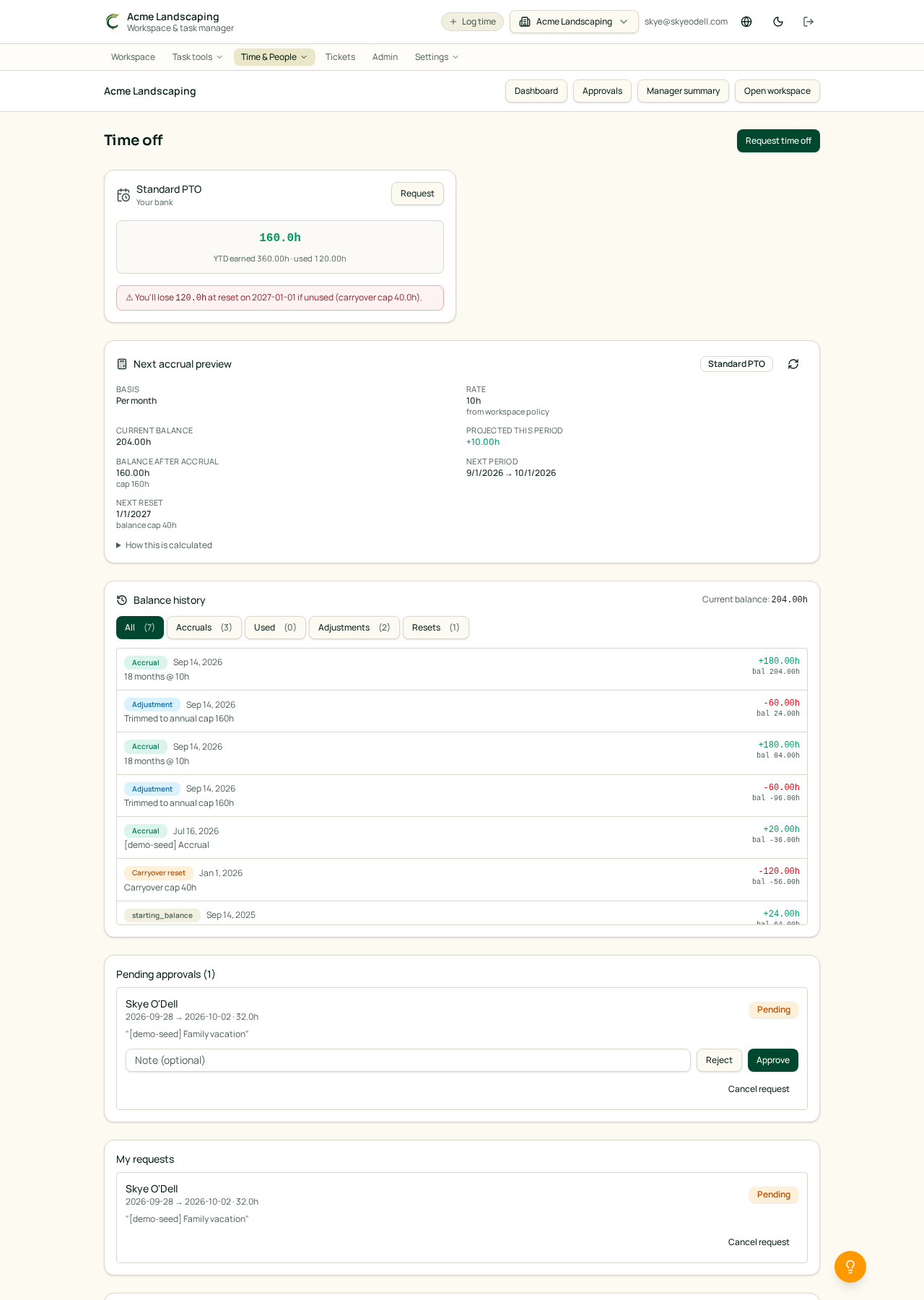
Every accrual, request approval, cancellation, and manual adjustment writes a row in the member's Balance history, visible to that member and to Managers. To grant bonus hours or correct a mistake, open the member's settings and use Adjust balance — include a note so the reason is preserved in the ledger.
Requires the Business plan
Time off is a Business+ feature. On lower plans the settings section shows an upgrade prompt and members do not see the /time-off page.
Related articles
- Requesting time off
- Approving time off requests
- Workspace members and roles