Using the Tickets dashboard
Learn how to turn tasks into tickets, manage workflow statuses, and navigate the tickets dashboard in Conopeum.
Turn on Tickets
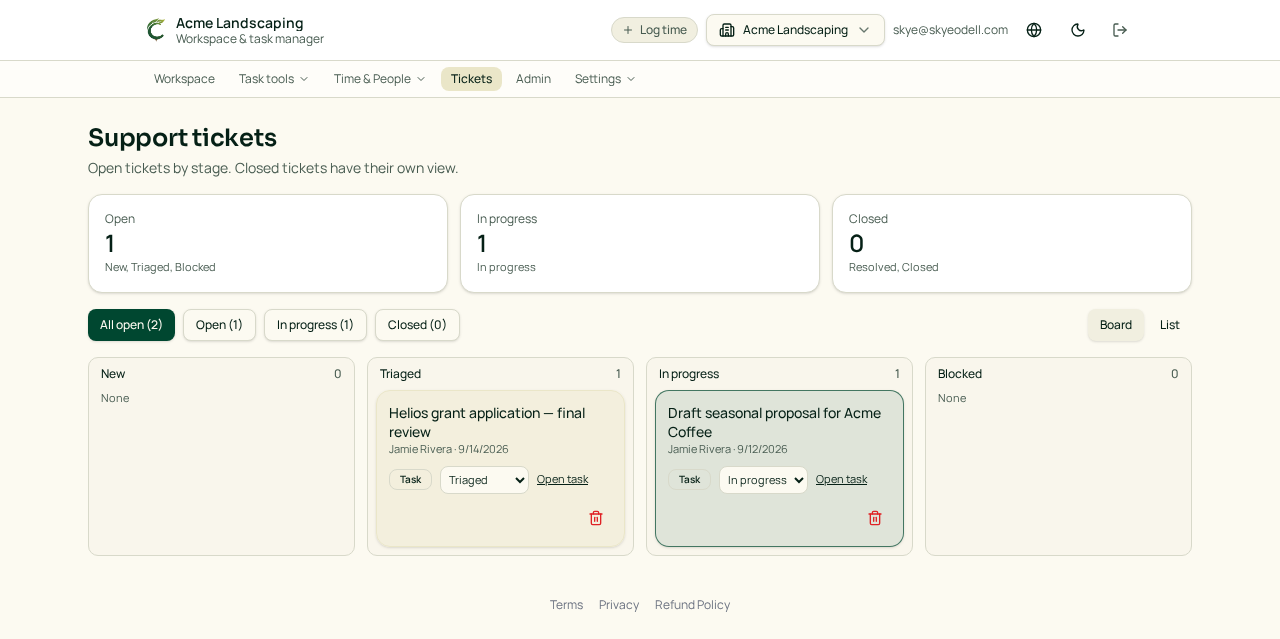
A workspace Owner can open Settings: Tasks and enable the Tickets dashboard. The Tickets menu appears for Owners and Managers in that workspace. Tickets never link across workspaces, as they stay siloed to their originating workspace.
Turn a task into a ticket
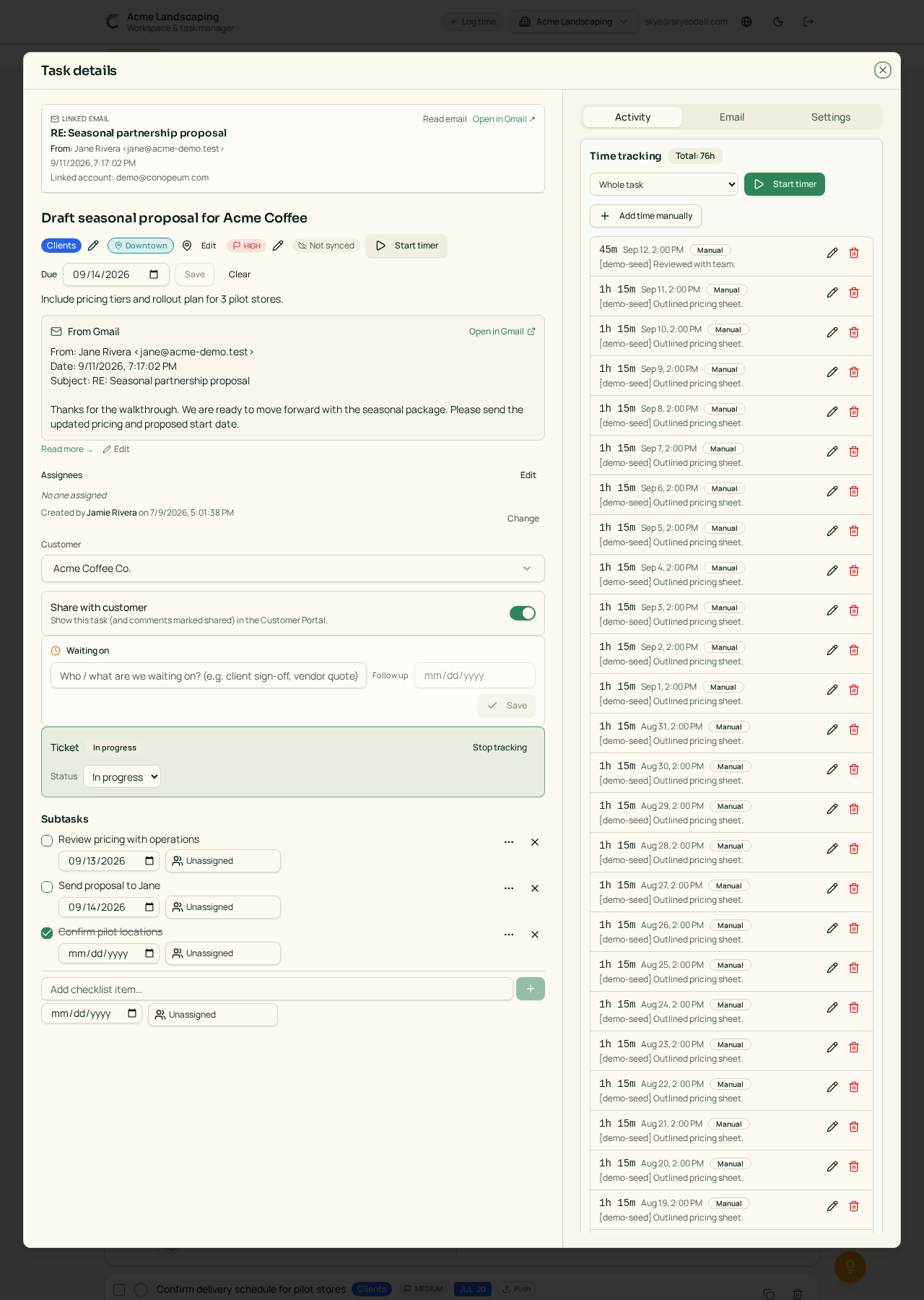
Open the task. In the ticket panel, choose Track as ticket. Owners and Managers can set its status or stop tracking it. Everyone who can view the task can see that it is a ticket and its current status.
A section can also be set to automatically make newly created tasks in that section tickets. This affects new tasks created in that section only; existing tasks are not converted.
Status workflow
Tickets use these statuses in order:
- New
- Triaged
- In progress
- Blocked
- Resolved
- Closed
The board uses the same columns as the status picker. Drag a card to another column, or use its status menu on touch devices and with a keyboard.
Task and ticket status stay together
Ticket status and task completion synchronize both ways. Setting a ticket to Resolved or Closed completes its task. Completed tasks are visibly marked complete and retain their due dates. Ticket tasks use matching status colors in the Tickets board and workspace task list, plus a status badge before the task title.
Chat tickets and task tickets
A Task ticket opens the full task. A Chat ticket originates from the support chat opened in that workspace. Open it to read the requester, sender names, dates, status, and conversation. Support replies appear in that conversation. Empty chats are not listed as tickets.
App super admins can delete tickets. Deleting a task ticket stops ticket tracking but preserves the task.