
Using the task page
Find your way around a task: details, subtasks, comments, files, time and settings.
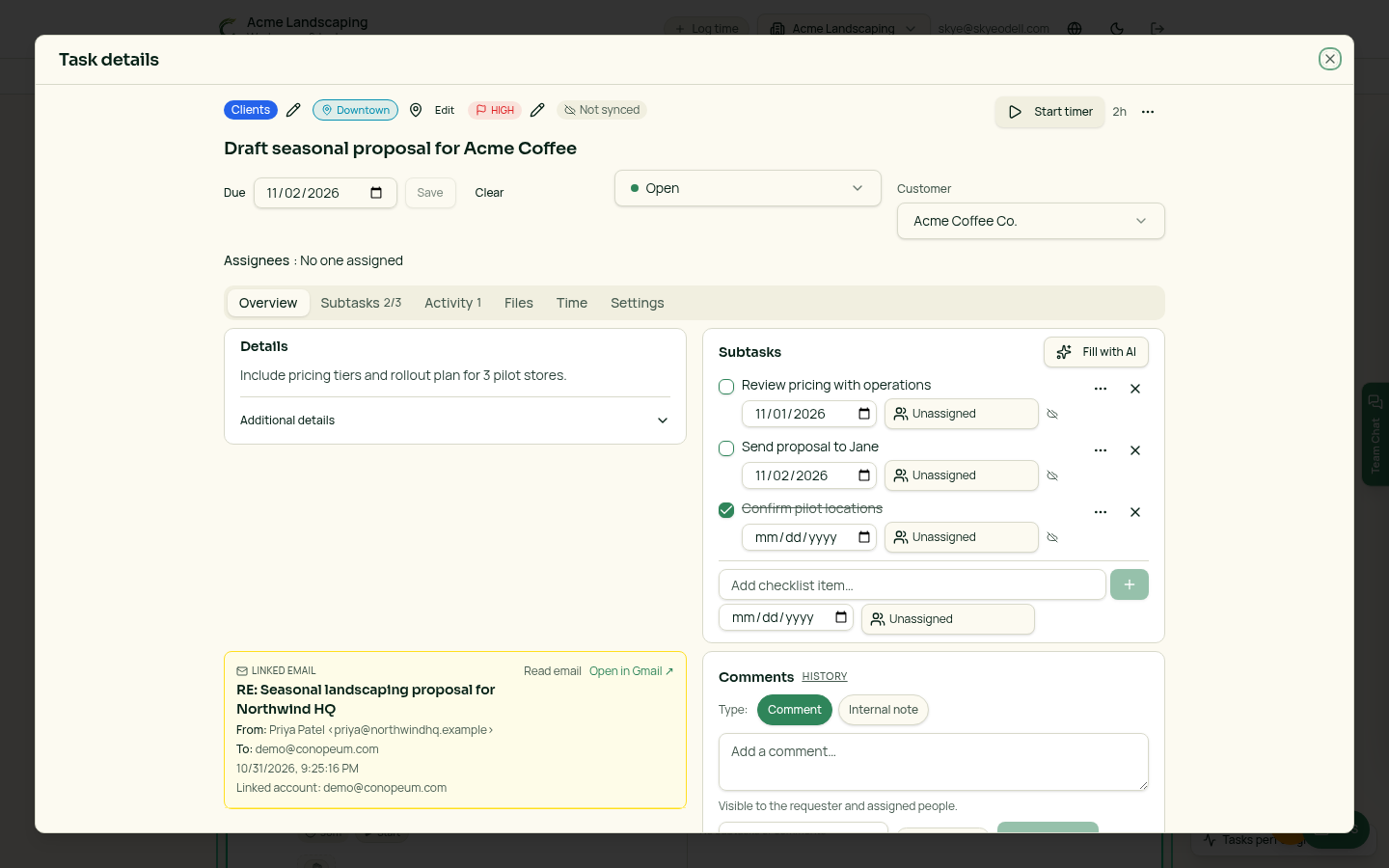
Two layouts
Every workspace can choose between Task template (the original sidebar layout) and Task template modern. Owners and Managers set the workspace default in Settings → Tasks & Calendar → Task page layout. Each person can pick their own layout for that workspace, or follow the workspace default, from the same place or from My task layout in a task's three-dot menu. The layout only changes how a task looks; contents, assignments and permissions stay the same.
The top of a modern task
- Section, location, priority and the Google sync badge sit above the title.
- The due date and status sit side by side, with Assignees: name, name on its own row. Click the word Assignees to change them.
- Start timer is at the top right, and the hours already recorded on the task (including its subtasks) show beside it.
- Clone, Merge, Archive and other less common actions live in the three-dot menu.
Overview
Details sits on the left and Subtasks on the right, so you can see both without scrolling. Long details start as a short preview; click Read more to see everything and Show less to fold it again. Owners and Managers can choose how many lines the preview shows under Settings → Tasks & Calendar → Description preview.
Additional details holds things you usually set once: assignees, customer, sharing with the customer and website.
If the task came from an email, the Linked email card is highlighted in light yellow with links to read it or open it in Gmail. Sender and form tables from the email sit to the right of the description on wide screens.
Comments and notes
Write comments right on the Overview. Choose Comment or Internal note before posting. Internal notes stay with your team; comments can be shared with the requester. Each type keeps its own color in Overview and Activity, and the full history is under Activity.
Subtasks
Tick a subtask in the list or inside the task. Depending on your workspace setting, Conopeum completes it straight away, asks for an optional note, or requires a note. Existing subtask notes are always kept. Dated or assigned subtasks can sync to Google Tasks as their own items, marked with a small green Google check.
Publishing channels
Workspaces that use publishing channels (such as Bulletin or Website) see them below Subtasks and in their own Channels tab. Dates are always listed earliest to latest. If a date passes and the item was never used, click the × beside that date to remove it from this task only. Workspaces without channels never see this area.
Files
The Files tab shows attachments on the left and the places you can add files from on the right: Google Drive, Canva and pCloud when connected. Images and PDFs preview inside Conopeum, and Google Drive files show their folder path (for example Bulletins / 2026) under the name.
Time and Settings
Time lists every entry recorded on the task and its subtasks. Settings holds who created the task and other one-time options.