
Switching workspaces
Use the workspace switcher in the top bar to jump between them; manage multiple Google accounts and team roles efficiently.
Overview
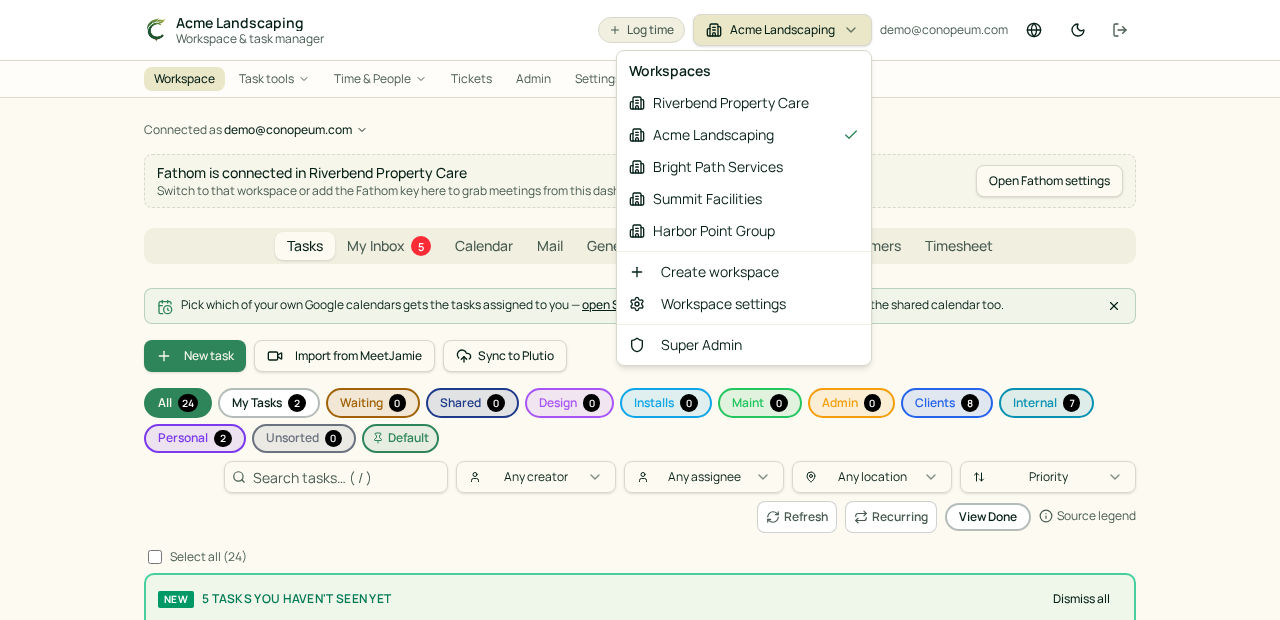
You can be a member of many workspaces, your personal one plus every shared workspace you've been invited to. Switch between them from the workspace picker in the app header. Because Conopeum allows you to connect multiple Google accounts per workspace, switching helps you stay organized across different teams and email identities.
Switch workspaces
Click the workspace name in the app header (next to Log time) to open the picker.
Pick any workspace to switch. Your current tasks, integrations, and inboxes all refresh to that workspace's data: nothing crosses over.
Create a new workspace
From the same picker, click Create workspace. Give it a name and slug and you're the Owner. New workspaces start empty; you can then invite members and connect integrations.
Personal vs shared
- Your personal workspace is created automatically on sign-up. You can't invite members to it. It's yours forever.
- Shared workspaces can have members with different roles. You can leave a shared workspace from Settings, Members (Owners must transfer ownership first).