
Submitting your timesheet
How employees review, submit, and re-open weekly timesheets for manager approval.
Overview
A timesheet is the collection of time entries you recorded during a week (Monday–Sunday). Once the week is complete, submit it so your manager can approve it and (if configured) push it to payroll or invoicing.
Time-off hours you have taken during that week are added automatically — you do not need to enter PTO as a timer.
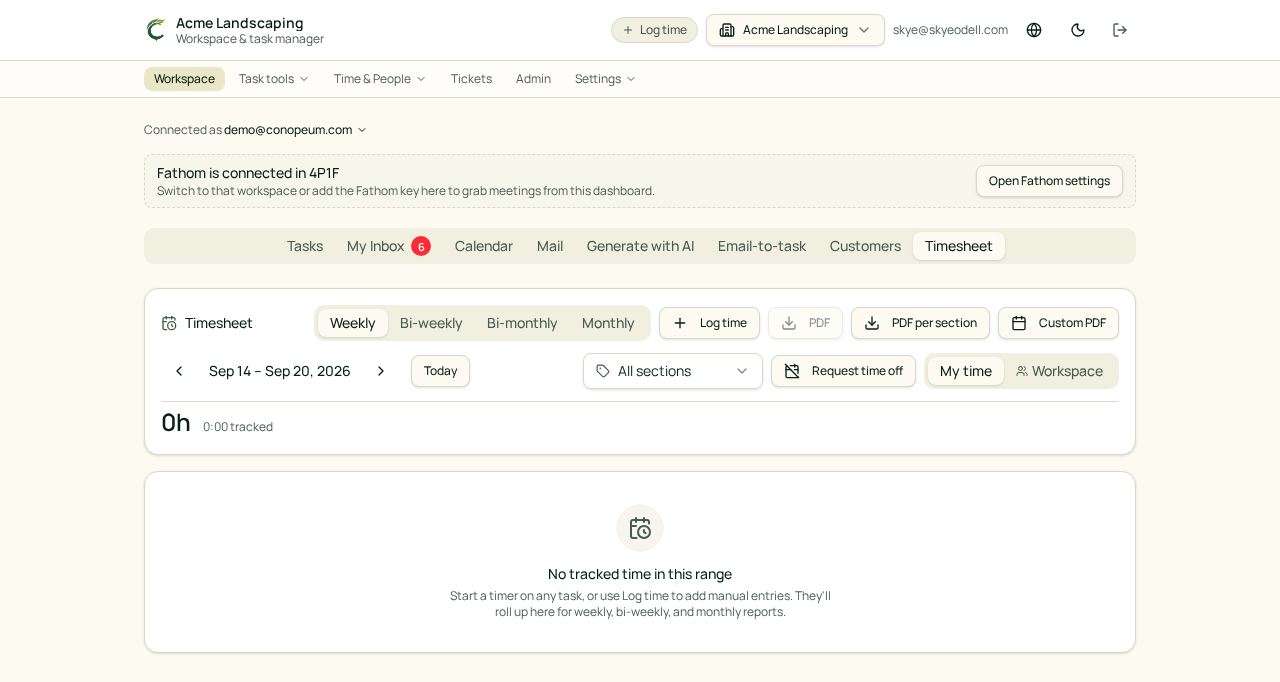
Open the Timesheet tab
Inside your workspace, open the Timesheet tab. You will see:
- This week — the current Monday–Sunday period, still editable.
- Previous weeks — historical weeks, grouped by status (Draft, Submitted, Approved, Rejected).
- A per-day breakdown of hours by task, plus totals.
Submit for approval
- Confirm the entries for the week look correct. Edit or delete any incorrect entries first.
- Click Submit for approval at the top of the week.
- Optionally add a note (for example, "one entry is an estimate, meeting notes missing").
- The week is locked from further edits and appears in your manager's Approvals queue.
If it comes back Rejected
If your manager rejects the submission, you'll see the reason at the top of that week. The week is automatically unlocked so you can fix entries and re-submit.
Re-opening an approved week
Approved weeks are read-only. If you spot a mistake in an approved week, ask a Manager or Owner — they can unlock it from the Approvals page.
Requires the Business plan
Timesheet submission and approval is a Business+ feature. If your workspace is on a lower plan, the Timesheet tab still tracks time but the submit/approve workflow is unavailable.
Related articles
- Running a timer
- Approving timesheets (managers)
- Requesting time off