
Scheduled emails and automation schedules
Schedule recurring emails, fixed dates, sender details, limits, and test deliveries.
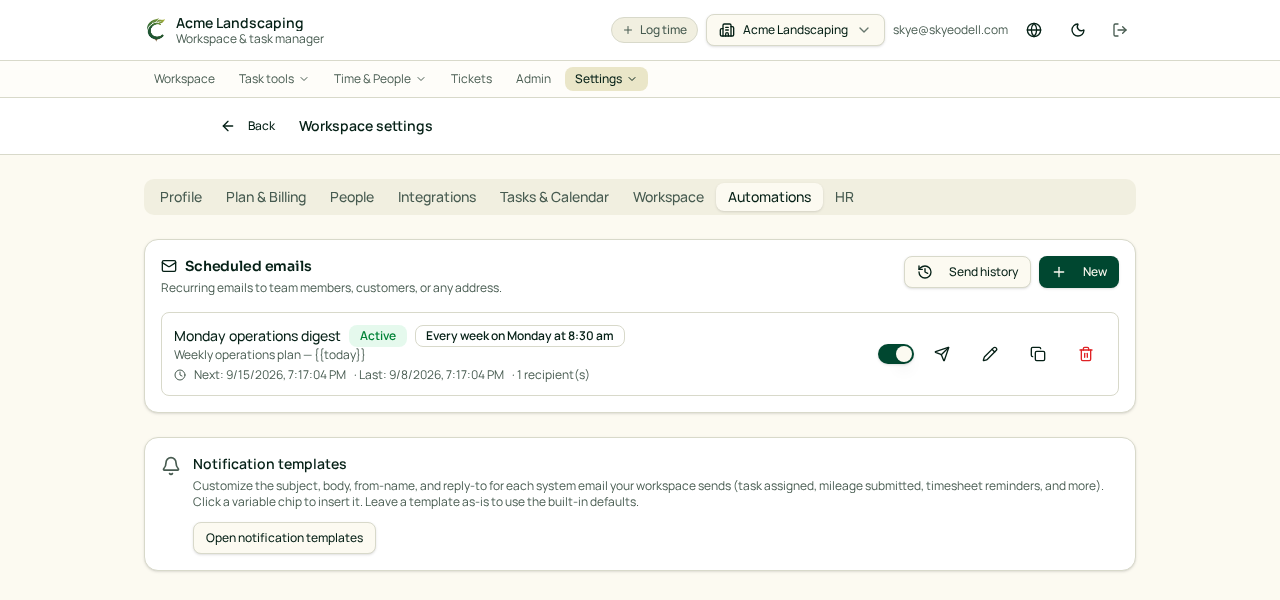
Create a scheduled email
Open Task tools → Scheduled emails or use a task’s Auto-email panel. Set recipients, subject, body, schedule, timezone, From name, and Reply-to address. Use Send test email now before activating it.
Schedule choices
Schedules support daily, weekly, monthly, semi-monthly, nth-weekday, and fixed lists of specific dates. You can shift calculated dates, including rules such as the Thursday before the second Sunday.
Use Stop after to limit how many times an automation sends. The schedule becomes inactive after the final allowed send. Delivery history shows what happened on previous runs.
Sender options
Choose Send as to use a workspace person’s name, reply address, and signature variables. If Send from a connected Google mailbox is enabled, the message is delivered from that connected Gmail account and appears in its Sent folder.
Variables
Subjects and bodies can use live date tokens such as {{today}}, {{today+7}}, {{next.tuesday}}, {{period.start}}, and {{period.end}}. The editor’s live preview shows the final text. See Date tokens in scheduled emails for formatting and weekday modifiers.