
Requesting time off
How employees see their PTO balance, submit a request, and track its status.
Overview
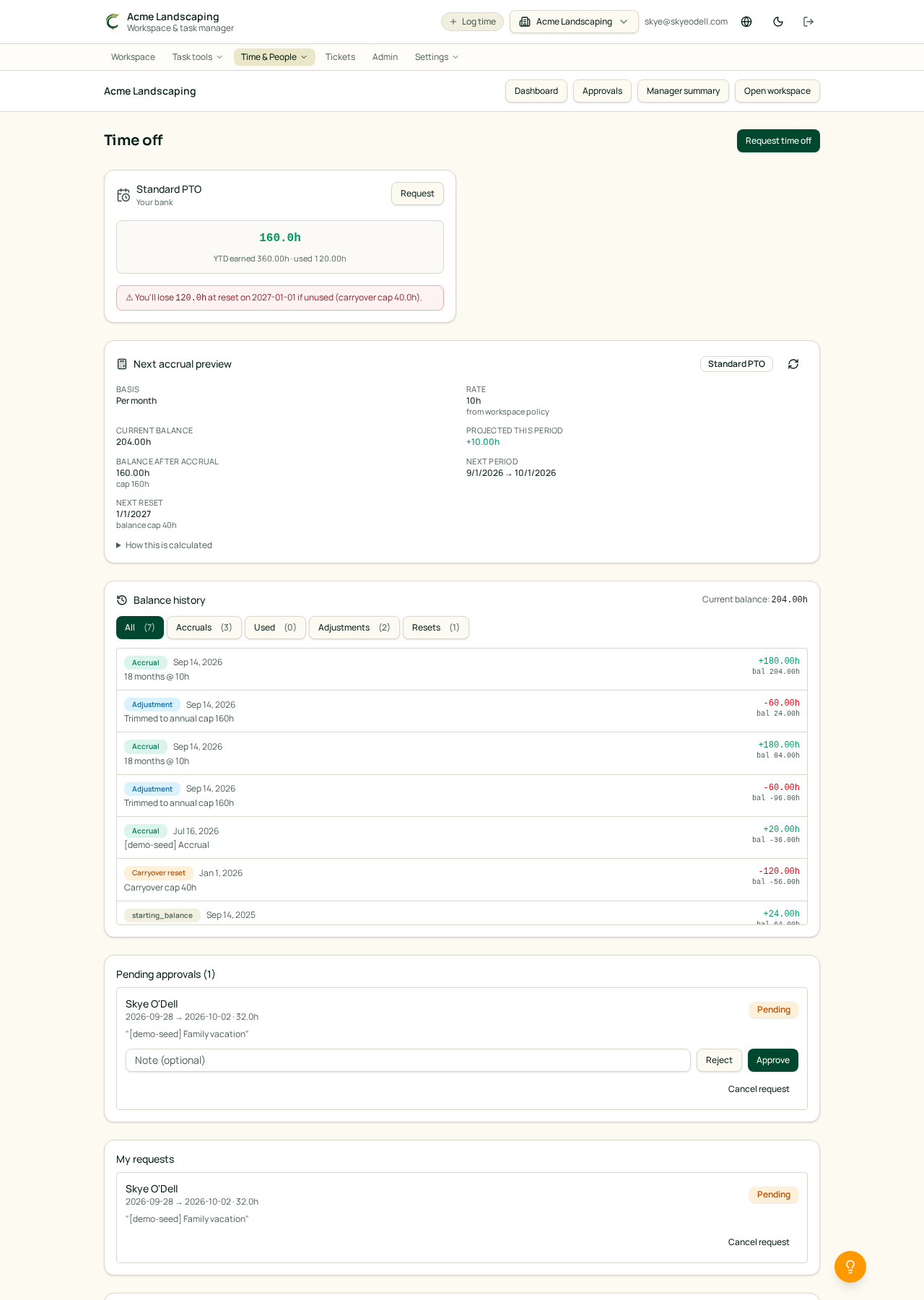
The Time off page (/time-off) is where you check your PTO balance, request days off, and see the status of your open and past requests.
Hours you take show up automatically on your Timesheet for the affected week — you don't need to also log them as a timer entry.
Check your balance
The top of the page shows:
- Current balance — hours available to request today.
- Accrual preview — how many hours you'll earn over the next few pay periods, based on your workspace's policy (for example, 10 hours per month, capped at 120).
- Balance history — every accrual, adjustment, and used-time entry that got you to today's balance.
Submit a request
- Click Request time off in the top-right.
- Pick a Start date and End date. Partial-day requests are supported by entering a specific number of hours.
- (Optional) Add a reason — helpful for your manager's review.
- Submit. The request appears in My requests with status Pending.
While a request is pending, its hours are held against your balance so you can't accidentally over-book.
Track and cancel
- Pending requests can be cancelled from the row while your manager hasn't decided yet.
- Approved requests are locked in and the hours are deducted from your balance.
- Rejected requests include your manager's note. The hours return to your balance and you can submit a new request.
Requires the Business plan and enablement
Time off is a Business+ feature and must also be turned on for your workspace by an Owner in Settings → Workspace. If it is off, the page shows a "Time off is disabled" message.
Related articles
- Approving time off requests
- Setting up time-off policies and accruals
- Submitting your timesheet