
Request forms
Build forms that turn submissions into tasks — share a link or embed them on your website. Pro plan and up.
What request forms do
Request forms let anyone — staff, customers or the public — send you a request that lands in your Inbox ready to review. When you accept it, it becomes a normal task with the right section, assignees, dates and publishing channels already filled in.
Forms are available on the Pro plan and up.
Create a form
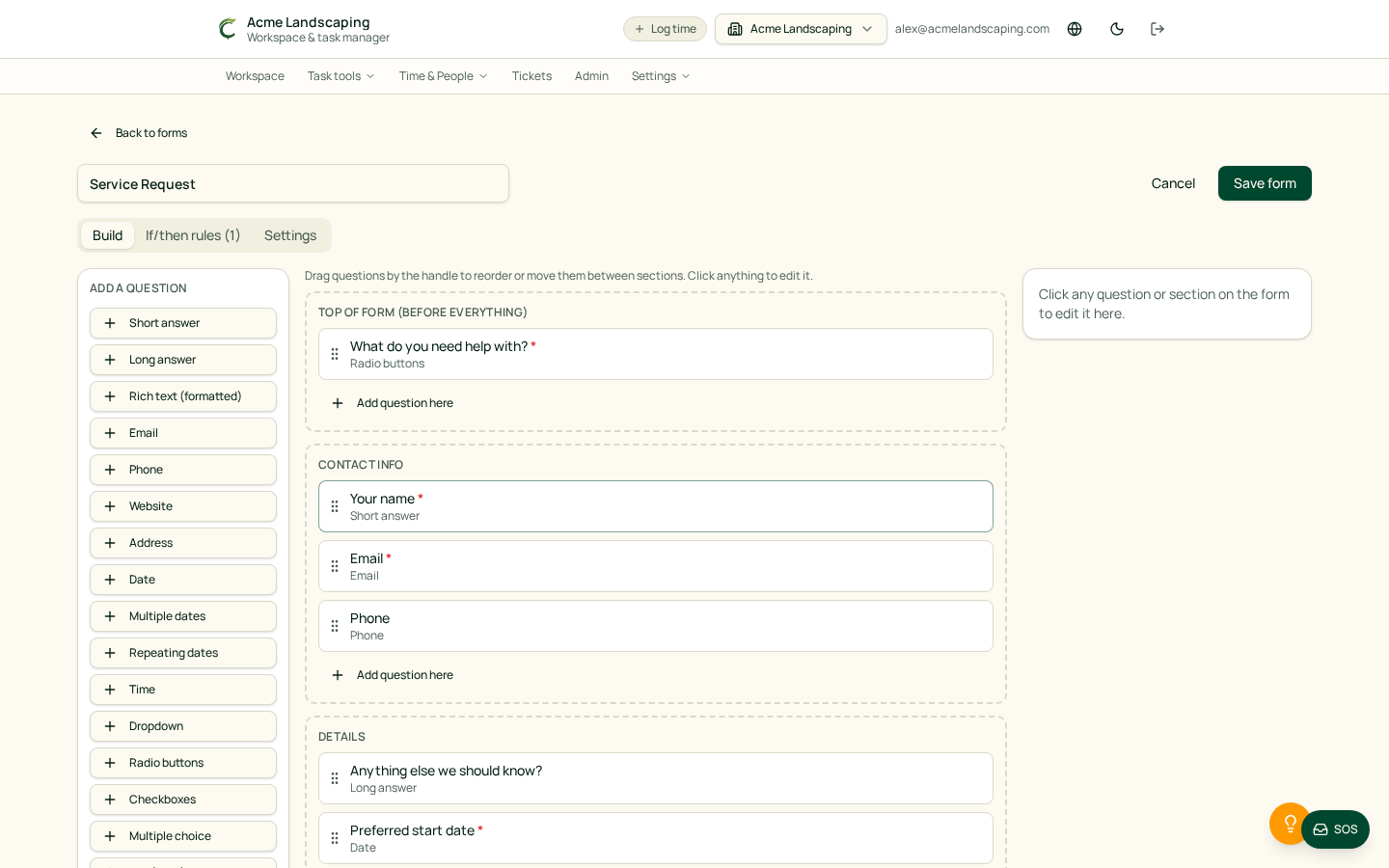
Choose Task tools → Forms (or Settings → Forms) and click New form. The builder opens full screen with three areas:
- Left — question types. Click a type to add it: Short answer, Paragraph, Rich text, Dropdown, Radio, Checkboxes, Multiple choice, Date, Multiple dates, Repeating dates, Time, Address, Email, Phone, Website and List.
- Middle — your form. Drag questions to reorder them or move them between sections.
- Right — settings. Click any question to change its wording, help text, required setting and choices.
Sections and if/then rules
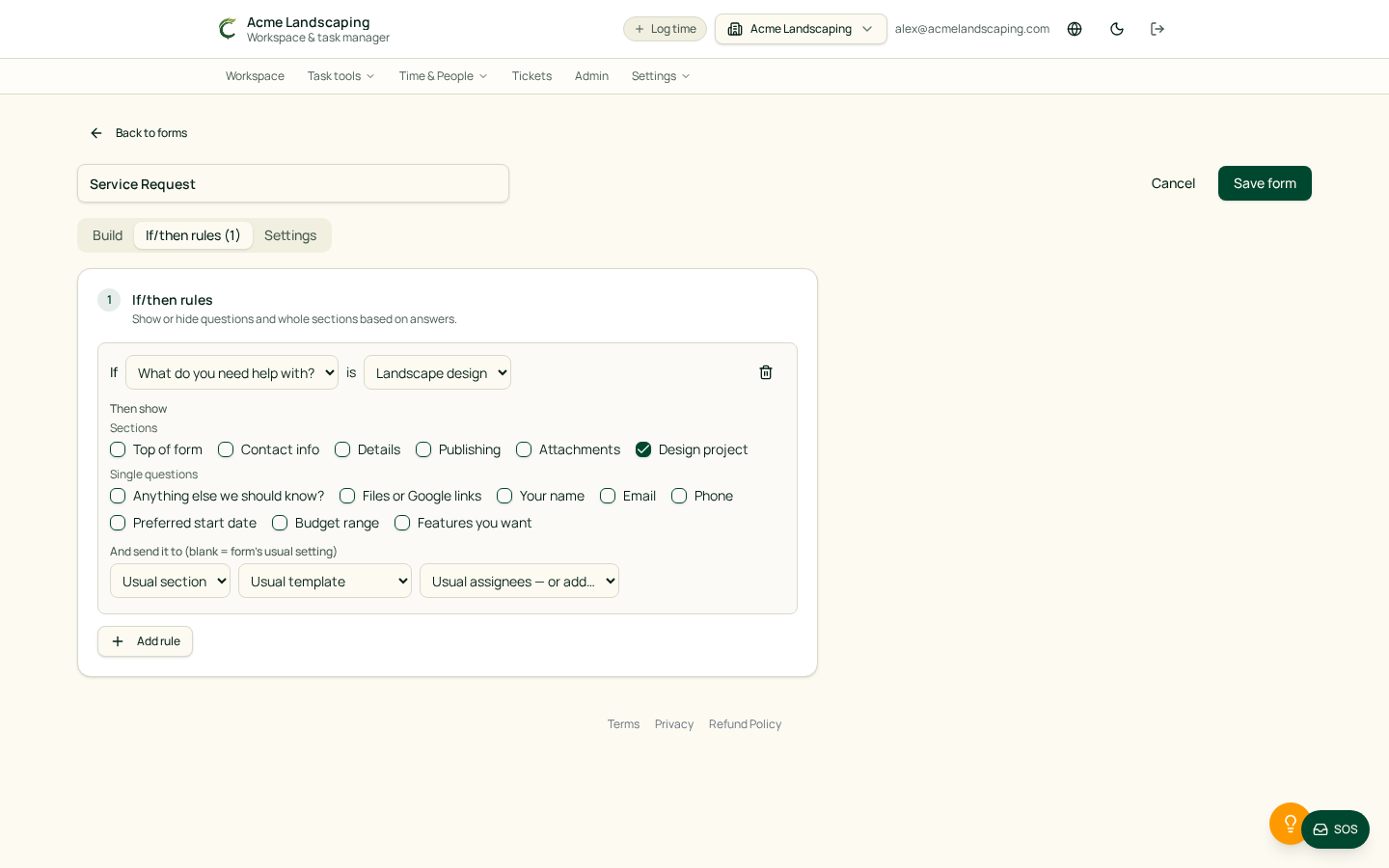
Group questions into sections such as Contact info, Details, Publishing or your own sections (for example, "Event details"). Any section can be hidden until a rule shows it.
On the If/then rules tab, pick a Dropdown, Radio, Checkboxes or Multiple choice question and an answer — or (any answer) — then choose which sections or questions to show. Answers in hidden sections are never saved.
Date and time limits
Date questions can require a minimum notice (for example, at least 14 days from today) and an end date can be set so it can't be before a start date. Time questions work the same way.
Where requests go
Under Where new requests go, choose the section, template, customer and assignees for new tasks. Rules can override this per answer. If your workspace uses Locations, people can pick one or more.
Share or embed
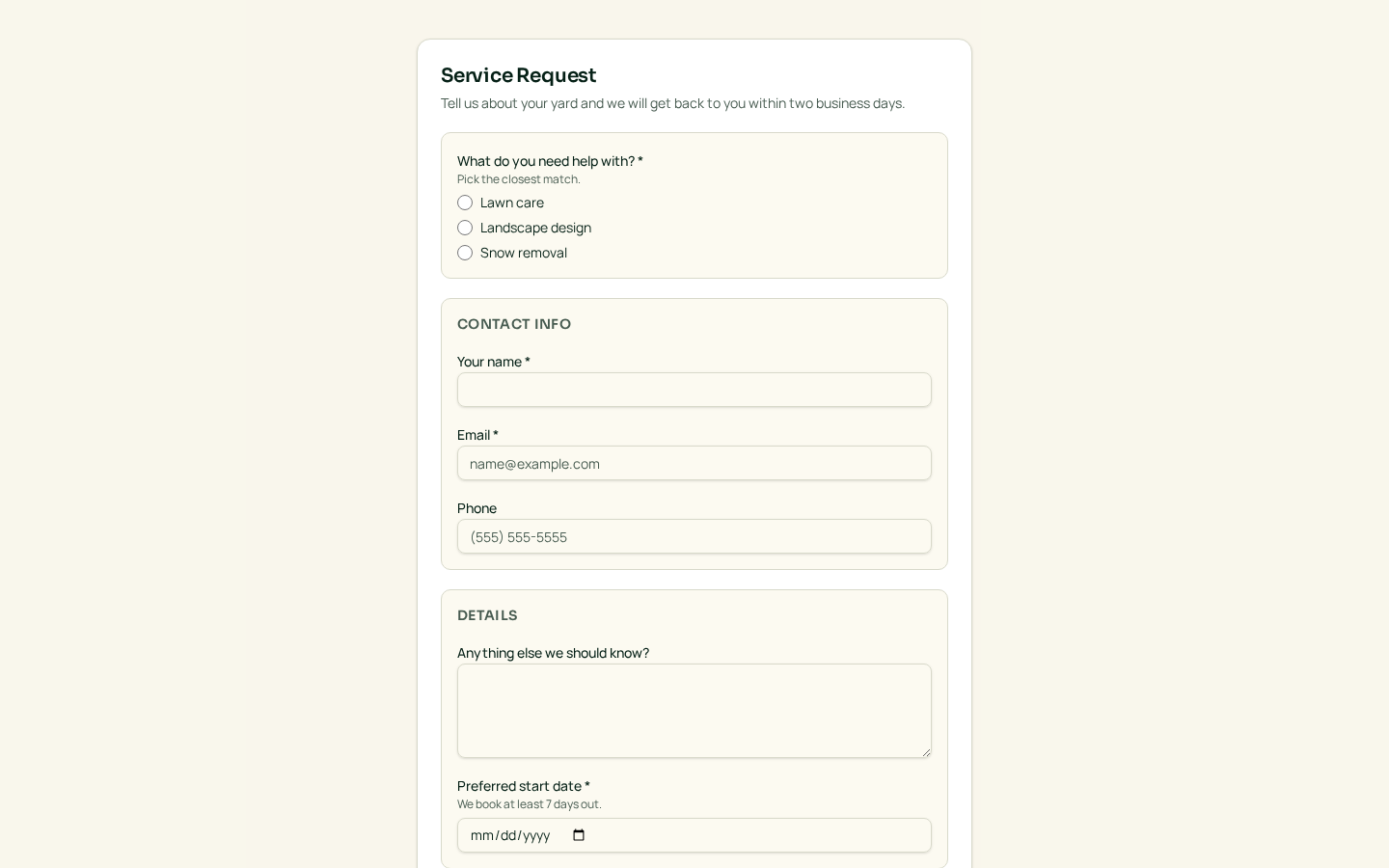
Each form has a public link and an embed code you can paste into WordPress or any website. Forms can be public or members-only.
Review submissions
New submissions appear under Form submissions in your Inbox with every answer shown. Choose Accept or Add as task to turn it into a task, Deny to move it to Trash, or Delete to remove it permanently. Attachments are saved to a named Google Drive folder, and the requester's email is prefilled when you email from the task.
Saving
Changes aren't saved automatically — click Save form. If saving is blocked, the reason (and a Show me link) appears next to the button.