
Build and print your organization chart
Arrange reporting lines, secondary managers, groups, job titles, and excluded people.
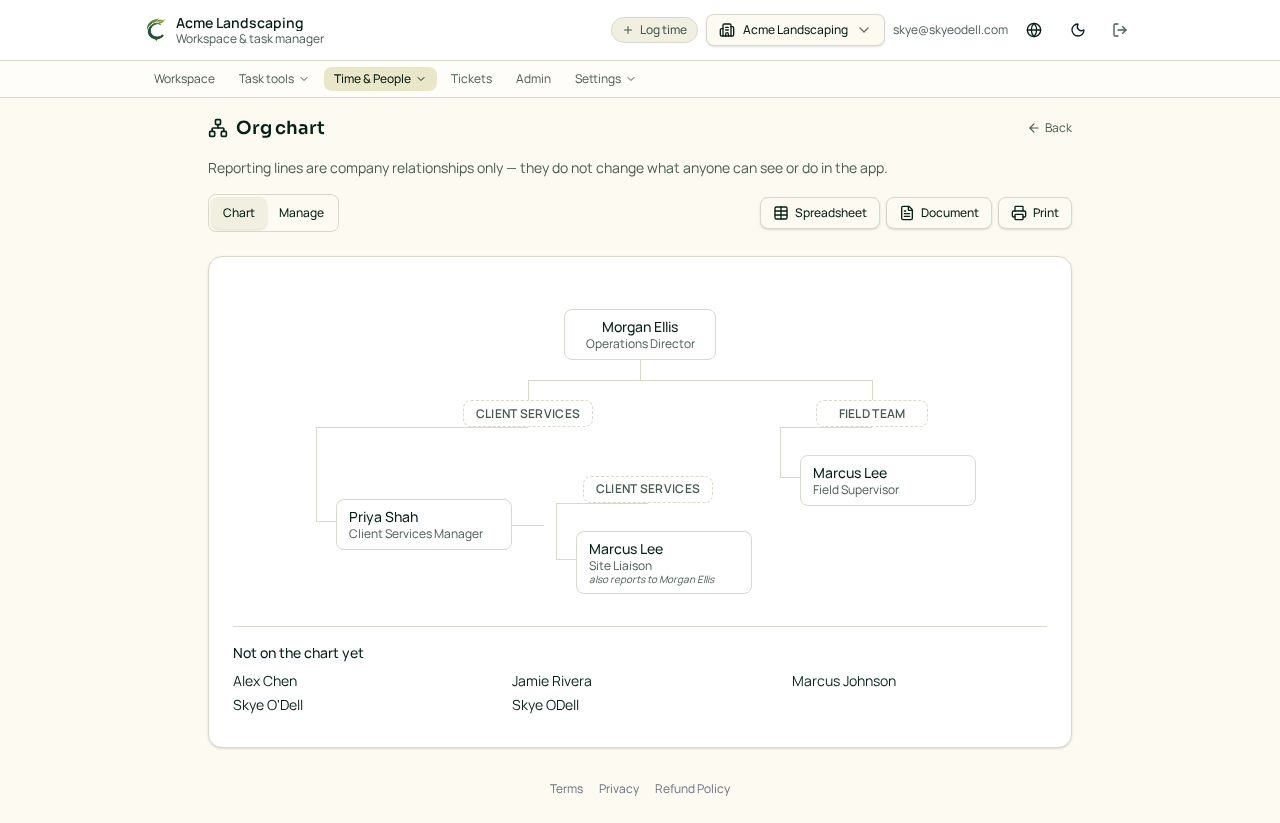
Open the organization chart
When HR is enabled, open Time & People → Org chart. Workspace members can view the chart. Owners and Managers can use Manage to change it.
Build reporting lines
Set each person’s primary Reports to manager and job title. Use chart groups for headings such as Field Team or Client Services. People without a reporting line appear under Not on the chart yet until placed.
Workspace owners appear separately because account ownership is not an employment reporting line. An owner can still report to a manager on the company chart. Reporting lines do not grant app permissions.
Multiple roles and managers
Use Add second manager when someone has another role or reporting line. The second placement can have its own group and job title. It appears as an additional dotted-line placement without duplicating that person’s team.
Exclude someone
Choose Not on chart for contractors, contacts, or other people who should not appear. Excluded people are also omitted from print and exports, and can be restored later.
Names and profiles
Profiles support a prefix, first name, last name, and job title. Select a person’s chart card to open their profile.
Choose Print from the Chart view. Conopeum prints only the chart in a landscape layout; other reports keep their own normal print formatting.