
Managing timesheets (Managers and Owners)
How Owners and Managers review and manage weekly timesheets for their team members within Conopeum.
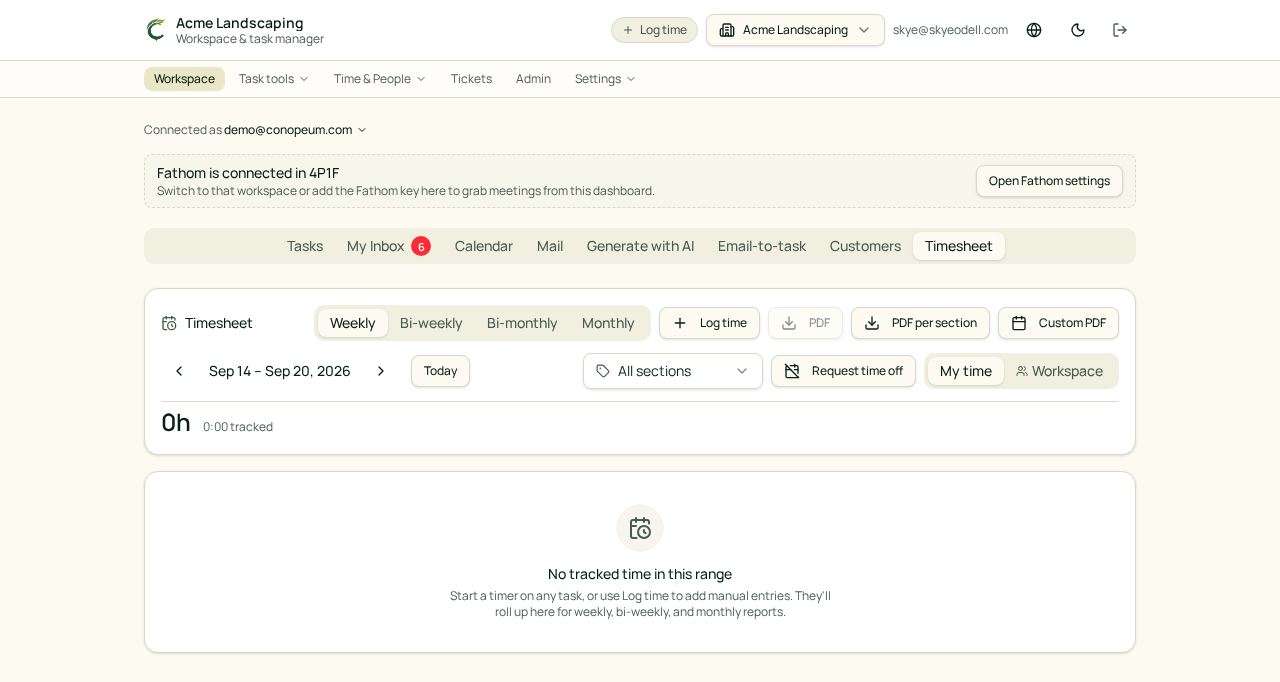
Overview
When a team member completes their week, Managers and Owners can review the entries for accuracy. As a leader, you can view timesheets via the person's profile to ensure regular work and PTO are recorded correctly.
Accessing Timesheets
To view team time entries, use the Time & People section in the top navigation. From there, you can navigate to individual person profiles. Each profile includes a Timesheets tab that shows the employee's history and current entries.
Each view shows:
- The Monday-Sunday week currently being viewed.
- Total hours, including regular work and approved PTO.
- A breakdown of time by day.
- Links to specific task entries for full context.
Time and PTO Integration
Conopeum automatically includes approved PTO in the timesheet view and on generated timesheet PDFs. If a teammate has an approved time off request for a specific date, those hours will populate the timesheet automatically to ensure the report is a complete source of truth for the week.
Manager Assignments
Timesheet oversight follows the organization chart structure. In the HR section, Owners and Managers can define primary and secondary managers for each team member. This hierarchy determines who has visibility into the Timesheets and Manager controls on a person's profile.
Exporting for Payroll
Approved weeks are typically treated as the source of truth. You can generate printable reports of timesheets, which include all tracked time and approved PTO, to facilitate payroll processing outside of Conopeum.
Related articles
- Time off policies and accruals
- HR organization charts
- Person profiles and Manager controls
Read a photographed timesheet
From HR Review → Time grid, choose Upload & scan timesheet and select the employee. Upload a photo or document to prepare an editable timesheet grid. HEIC/HEIF iPhone photos are accepted directly and automatically saved as high-quality JPG files for reading and download; no manual conversion is needed. Files and converted photos must be 10 MB or smaller.
Check the extracted dates, hours and notes before choosing Add hours to Time grid. Hours remain editable until the normal period approval. Uploading or AI reading never approves hours automatically.
Clock times and substitute-teacher days
Scans read in/out clocks before handwritten totals and deduct only explicitly recorded unpaid breaks. Review discrepancies before submission. For substitute-teacher timesheets, enable Substitute teacher: review full / half days and select each day individually: Full day sets 8 hours; Half day sets 4 hours. Recorded clocks remain in the description. No day classification or approval happens automatically.
Review rounded hours
Each scanned day can show Clock calculation, Nearest quarter hour and Handwritten total. Choose the value HR wants to use for that day, or edit Hours directly. For example, 8:00–15:10 calculates as 7.17 hours and rounds to 7.25 hours. Rounding is to the nearest 15 minutes, not always upward. Nothing is rounded automatically, and full/half-day choices remain available. Save draft retains the reviewed hours and source comparisons; Add hours to Time grid uses the selected hours without approving the period.